
What is Elementor? follow this article.
The theme is most compatible With Elementor, The theme integration is based on the free Elementor version. You don’t need to buy the Elementor Pro version. This is the best builder for WordPress with more than 2 million active users. Foxiz supports all layouts for this plugin.
To use Elementor, You need to install and activate the plugin:
https://wordpress.org/plugins/elementor/
Creating a page to use the “Elementor”
To get started, follow the steps below:
- Navigate to Page > Add New.
- Add the title of the page ie: Home.
- Click on the “Edit With Elementor” button to switch to the builder.
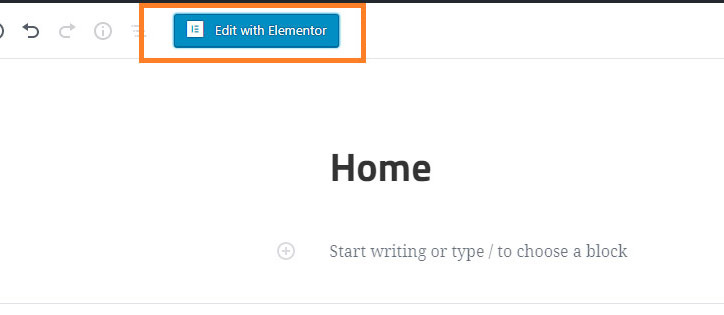
- The website will redirect to another URL and the panel will appear on the page.
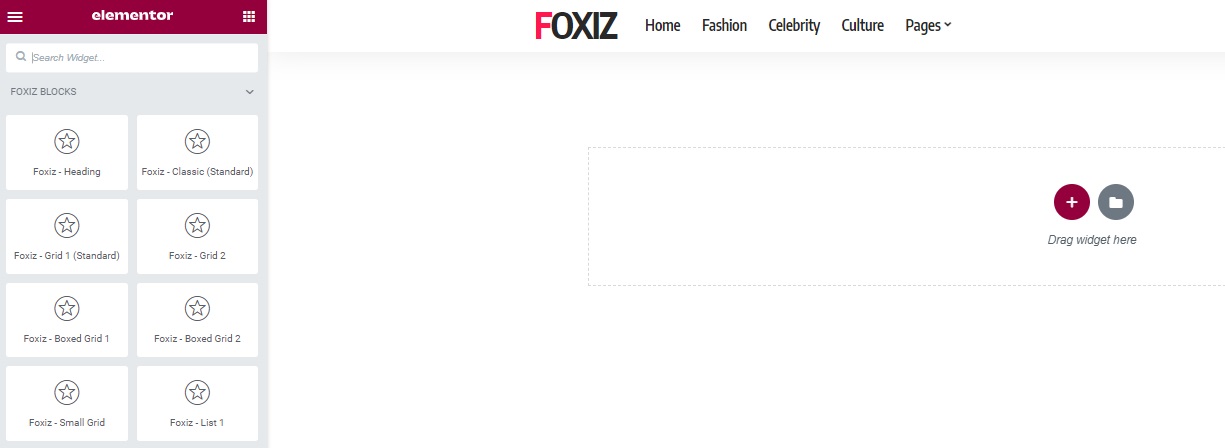
Important Step: Setup the global layout
Foxiz use 1240px grid system. It means that the max width content of your website is 1240px (the left and right edge spacing are not included).
Please follow the instruction below to set up the page layout before starting add layout:
Global Layout Settings for Elementor
Elementor Blocks
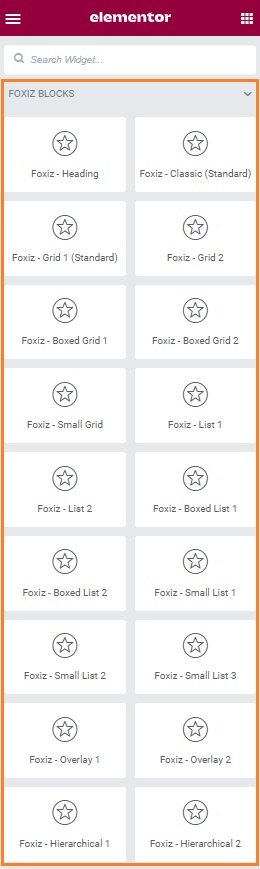
Foxiz supports many block layouts for elementor, You can find all of them in “Foxiz Blocks” category:
Creating your section
- Click on “Add New Section” button to create a section you would like. You can create as many sections as you wish.

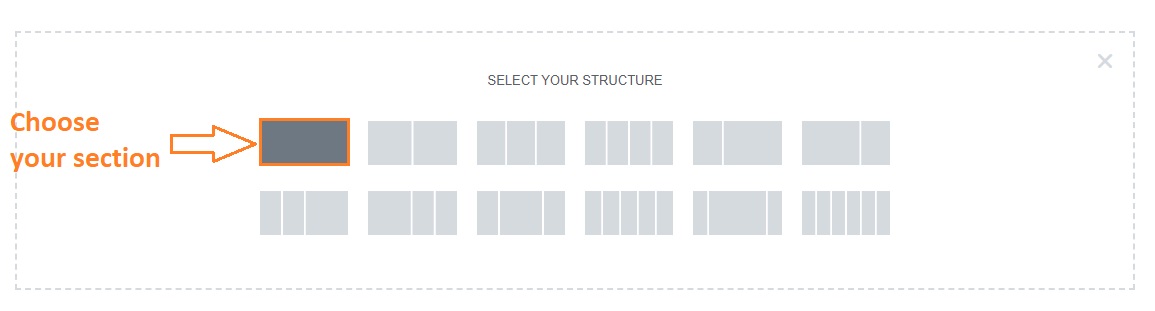
- Select Your Structure: Choose a structure for your section. A section can be set as full width and spread all over the screen, or the content area with sidebar, or you can also divide each section into a few columns.
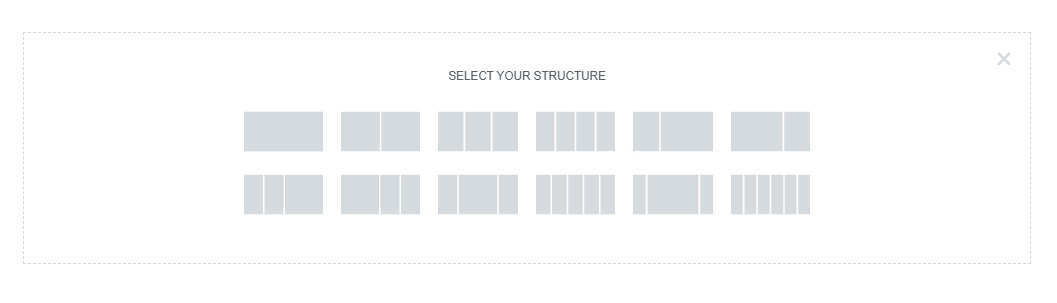
- After you create a section you can drag and drop blocks to inside.
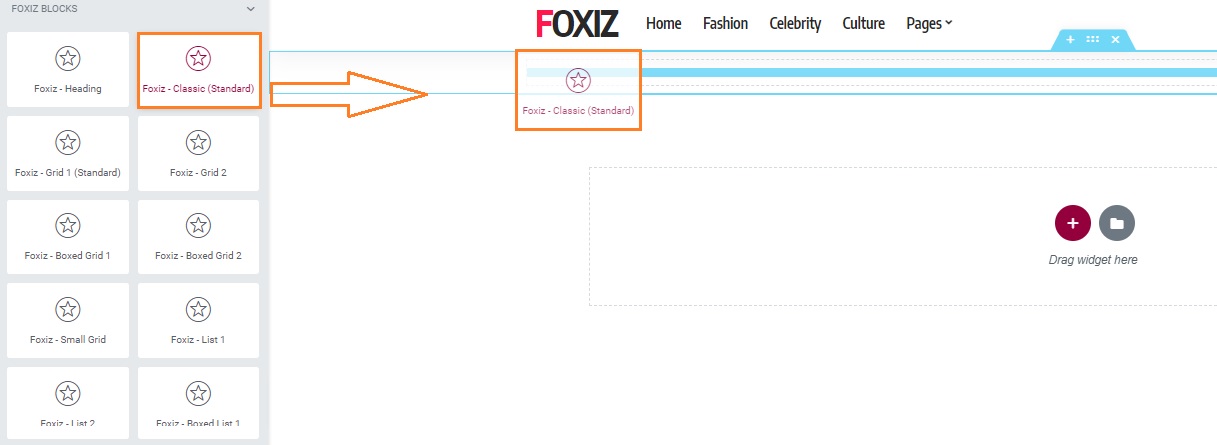
Create a Full Width Section (without Nested Inner Sections):
- Select Your Structure: Choose a structure for your section.
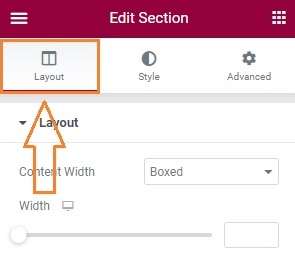
- Click on the “Layout” icon at the bottom of the left panel.
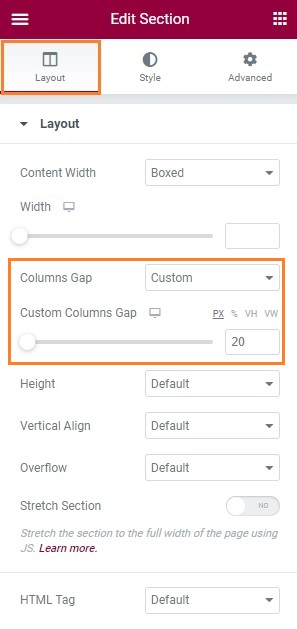
- Under the “Columns Gap” option, select “Custom”. the “Custom Columns Gap” option input this value “20”
- After you create a section, you can drag and drop blocks to the section.
Create a Section with Inner Section:
The Inner Section used is to create nested columns within a section. This way you can create complex layouts.
- Select Your Structure: Choose a structure for your section.
- Click on the “Layout” icon at the bottom of the left panel.
- Under the “Columns Gap” option, select “No Gap”.
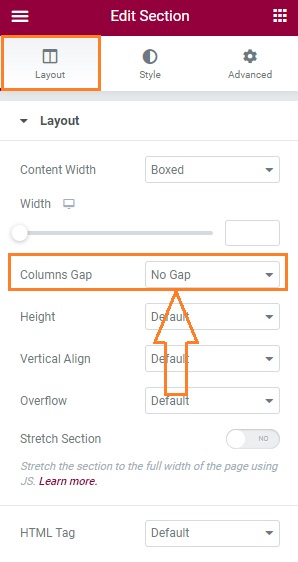
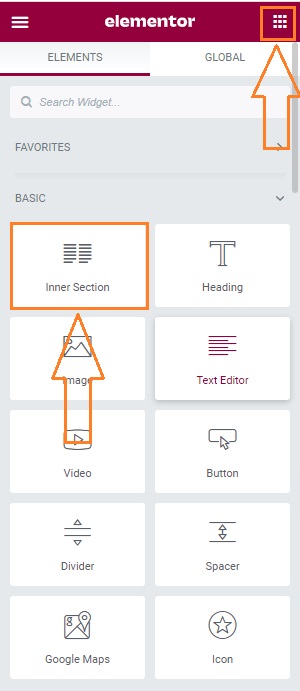
- After you create a section, click on the “Menu” icon at the right top of the left panel. Scroll down to the “BASIC” and find the Inner Section block, then Drag Inner Section to your section.
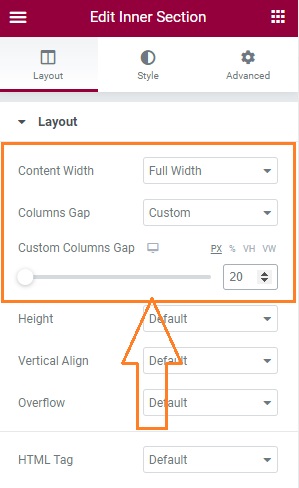
- Under the “Content Width” option, select “Full Width”. the “Columns Gap” option, select “Custom”. the “Custom Columns Gap” option input this value “20”.
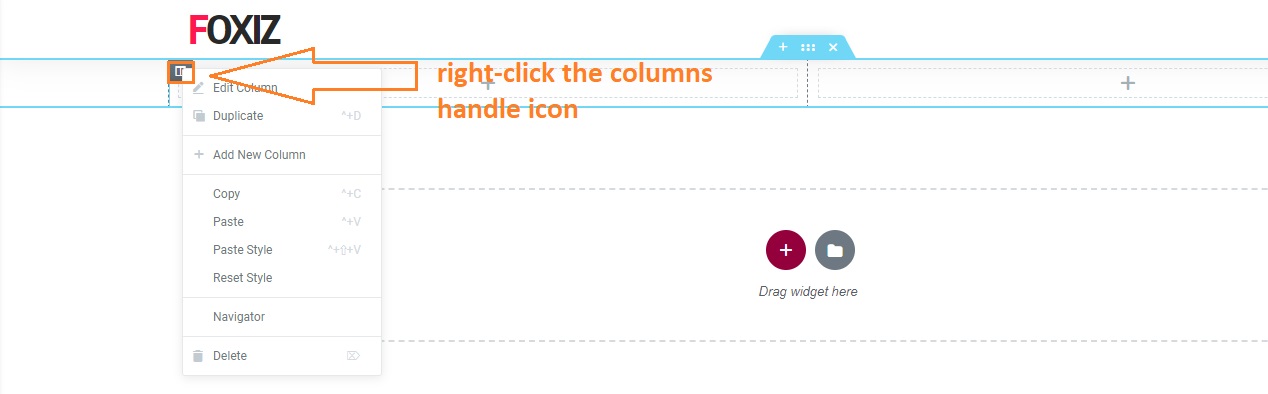
- As a default, you will get a section with two columns. You can add or remove columns by right-clicking the columns handle icon.
- After you create a section, you can drag and drop blocks to the section.
Create a section has a sidebar:
This section will show any sidebar at the left or right of content: 66.7% width of content + 33.3% width of the sidebar.
- Select Your Structure: Choose a structure for your section.
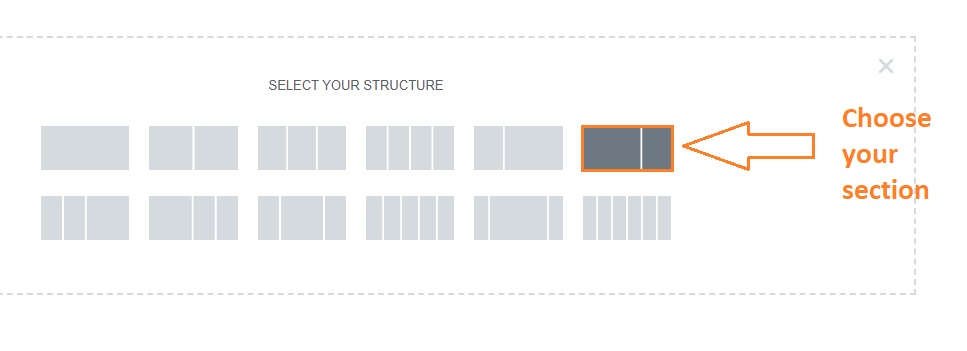
- Click on the “Layout” icon at the bottom of the left panel.
- Under the “Columns Gap” option, select “Custom”. the “Custom Columns Gap” option input this value “20”.
- Click on the Sidebar Column “33.3% width” edit button.
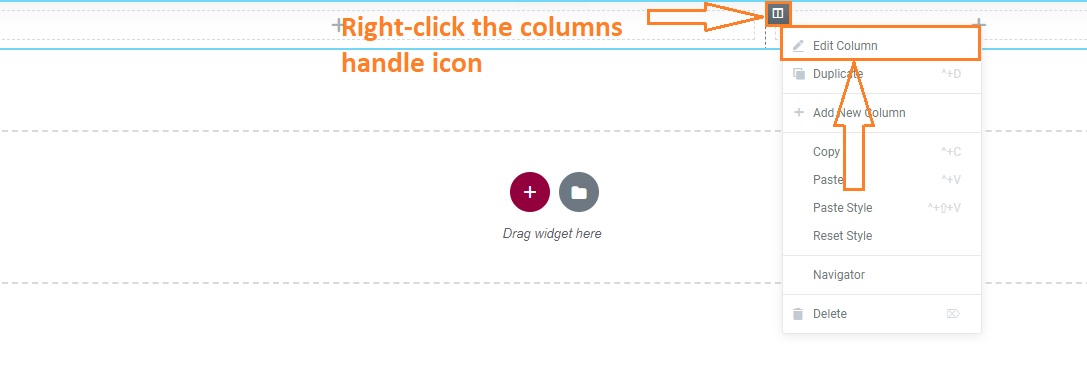
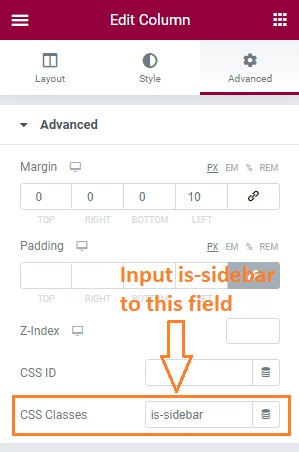
- Select the “Advanced” tab.
- Input is-sidebar into the CSS Classes input field and rb-sticky to make it sticky. Please read this article for further information
- add left margin value is: 20 or 10 (depending on your own design)
- After you create a section, you can drag and drop blocks to the section.
Displaying a page build with Elementor as the Homepage (Front page):
To set up the homepage to show the page you created, follow this article.
