
Using the “Use WP Global Query” Option
Follow the steps below to customize the author page using the WP Global Query option:
- Navigate to Ruby Templates:
- Go to Ruby Templates > Add New Template.
- Enter a title for your new template.
- Add Foxiz Blocks:
- Utilize Foxiz blocks integrated with Elementor.
- Drag and drop the desired block into the template layout.
- Configure Query Mode:
- Open the Content tab.
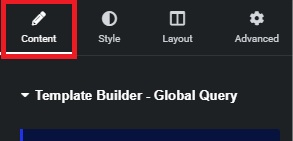
- Navigate to Template Builder – Global Query.
- Set Query Mode to Use WP Global Query.
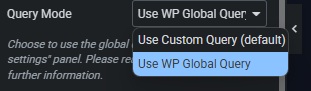
- Open the Content tab.
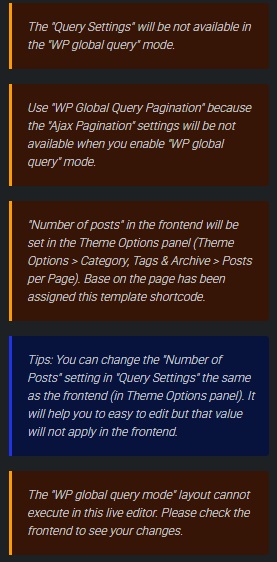
Note: “Query Settings” will not be available in WP Global Query mode.
- Save and Apply the Template:
- After creating the template, go to Ruby Templates and copy its shortcode.

- Navigate to Theme Options > Author Page > Use Ruby Template for the Post Listing.
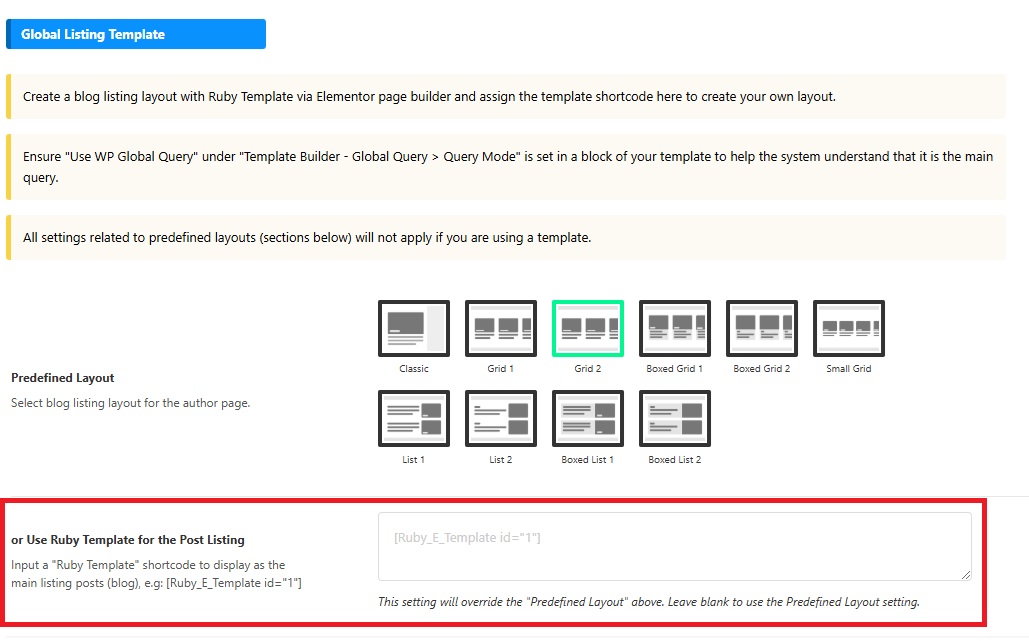
- Paste the copied shortcode into this field and click Save Changes.
- After creating the template, go to Ruby Templates and copy its shortcode.
Using the “Use Custom Query (Default)” Option
Follow these steps to customize the author page using the Custom Query option:
- Navigate to Ruby Templates:
- Go to Ruby Templates > Add New Template.
- Enter a title for your new template.
- Add Foxiz Blocks:
- Utilize Foxiz blocks integrated with Elementor.
- Drag and drop the desired block into the template layout.
- Configure Query Mode:
- Open the Content tab.
- Navigate to Template Builder – Global Query.
- Set Query Mode to Use Custom Query (Default).
- Adjust Query Settings:
- Within the Content tab, go to Query Settings.
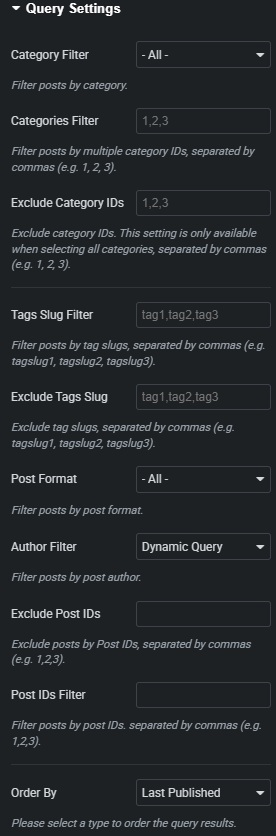
- Customize filters to control post queries.
- Within the Content tab, go to Query Settings.
- Set Up Author Filtering:
- You have two options:
Option 1: Dynamic Query (Recommended)
- This dynamically queries posts for each respective author page.
- You can insert the shortcode in Theme Options instead of creating multiple author templates.
- Navigate to Theme Options > Author Page > Use Ruby Template for the Post Listing.
- Paste the shortcode and click Save Changes.
Option 2: Static Author Assignment
- Assign a specific author layout.
- Copy the shortcode and manually insert it in the author’s profile:
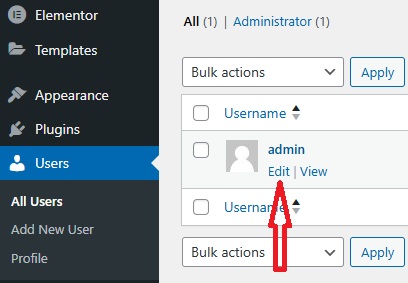
- Go to Users > All Users.
- Select the specific author and click Edit.
- Locate Author Page Template Builder.
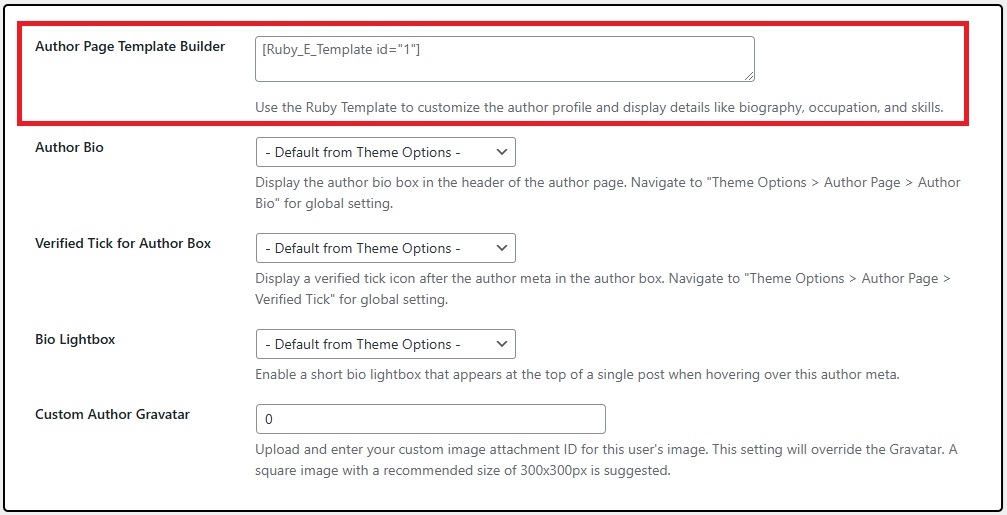
- Paste the shortcode and save.
- This method allows unique layouts for different authors.
For more details on creating Ruby Templates, refer to the official documentation: Foxiz Ruby Templates Documentation
