
Maintaining consistency with one H1 tag for effective Website SEO. Keep your content structure clean and improve search engine visibility by addressing and rectifying any duplicate H1 tags.
How to Check <H1> Tags on Your Website Page
To check the H1 tag on a website by using “view-source” in a browser, you can follow these steps:
- Open your web browser (e.g., Chrome, Firefox, Safari).
- Right-click anywhere on the page and select “View Page Source“.
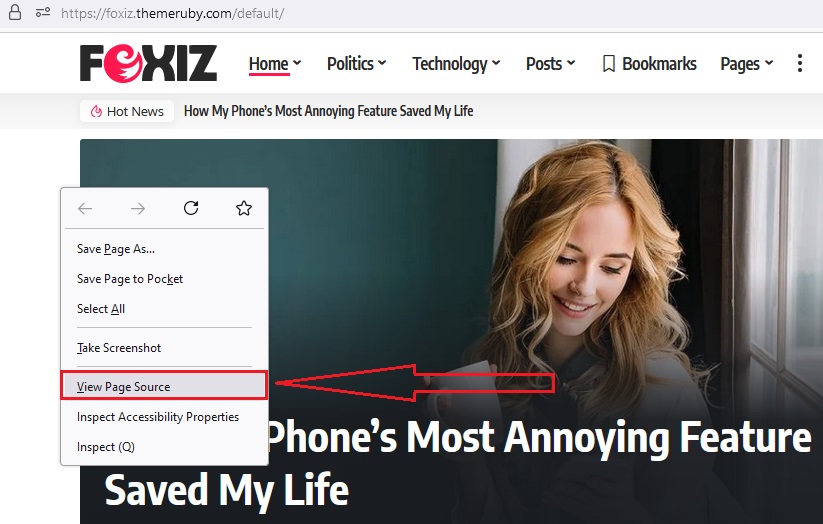
- In the “View Source” window, you can use the keyboard shortcut Ctrl + F (Windows/Linux) or Command + F (Mac) to open the search tool.
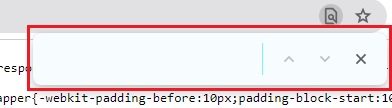
- Type <h1 in the search box and press Enter

Handling Multiple H1 Tags on a Website Page
The H1 tag of the theme is created from the Logo block in Elementor. If you’re using multiple logo blocks for Header and Footer templates, please make sure to enable the H1 tag for only one block and disable it for the remaining ones. To disable the H1 tag, kindly follow the steps below:
- Navigate to Dashboard > Ruby Templates > Template with the logo block > Click “Edit with Elementor”.
- Click on the Site Logo block, and its settings will be displayed on the left side of the screen.
- You will see the “Site Title Included” option.
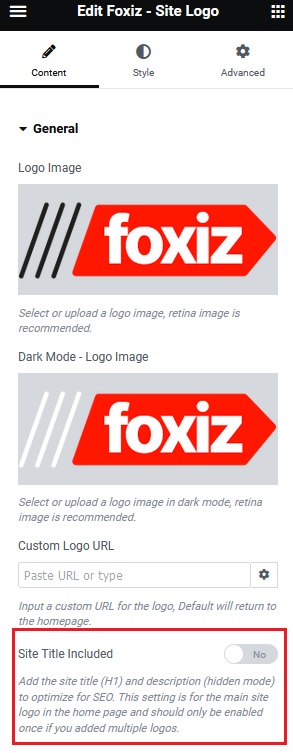
- Please ensure there is only one H1 tag on the website. If multiple Site Logo blocks are used on the website, you need to disable the “Site Title Included” option and enable it for only one block.
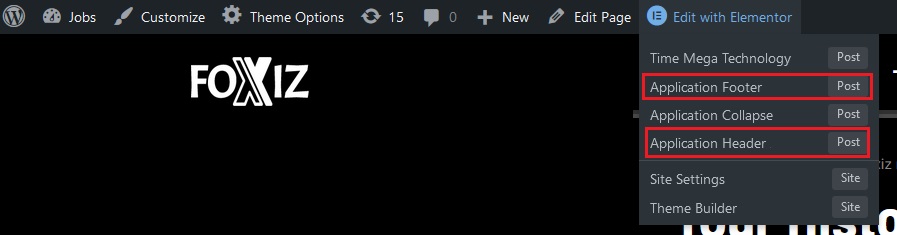
To check if you’re using the Header template and Footer template, simply hover over the “Edit with Elementor” option on the admin bar. If you’re using any template, it will display all the details in the submenu below. From there, just click on the “Post” button to navigate to the corresponding template for editing.
- Click “Update”
How to Add the Logo on the Header Template
How to Structure a Header Layout Using a HeaderTemplate
Footer Builder
How to Upload Logo & Favicon?
How to Config The Header?
How to Config the Footer?
