
Foxiz supports the OpenAI Assistant feature to help you generate content with prompt suggestions.
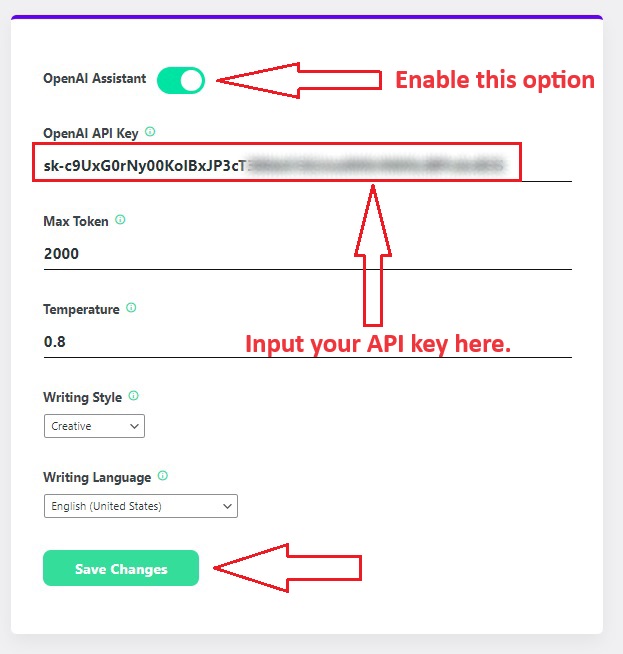
Create an OpenAI API Key and input the API key into the Theme settings:
- To utilize the Ruby OpenAI Assistant feature, you need to create an OpenAI API Key.
- You can create your API key by clicking on the link and following the instructions to generate an API key: https://platform.openai.com/account/api-keys
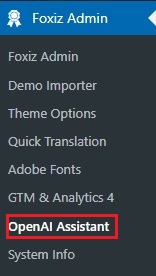
- After creating the API key, navigate to Foxiz Admin > OpenAI Assistant
- Here, you will need to input the API key into the OpenAI Assistant settings to activate this feature.
How to use OpenAI Assistant in a blog post:
-
- Go to your website’s Dashboard, and then select “Posts” followed by “All Posts“
- On this page, you have the option to either craft new posts or modify your current ones, which will lead you to the Gutenberg editor.
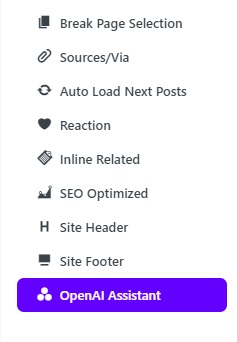
- In this editing page, scroll down to the Single Post Settings section, then look for OpenAI Assistant and click on it
- In the Ruby OpenAI Assistant section, you will find options for Content Type. Choose the type of content you would like AI to write.
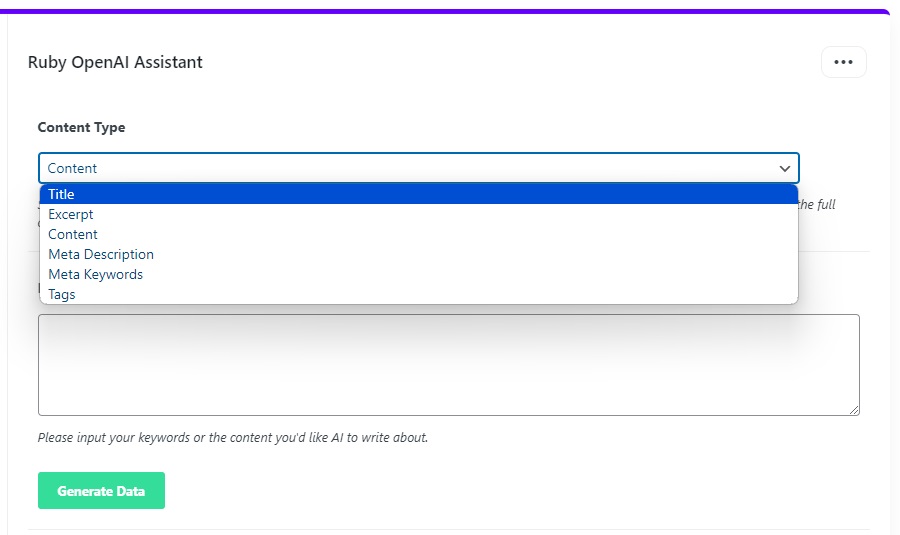
- When you select this content style, the Prompt Info section will display suggestions based on the styles you have chosen.
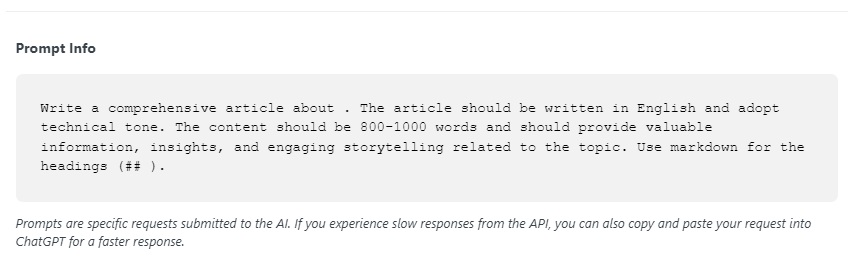
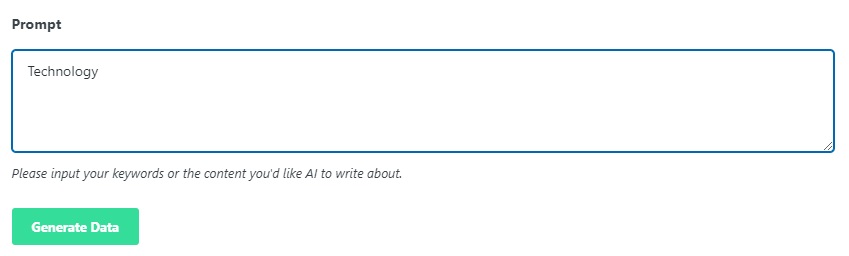
- Next, enter the keywords or content you want the AI to write in the Prompt field, and click the Generate Data button to retrieve AI-generated content.
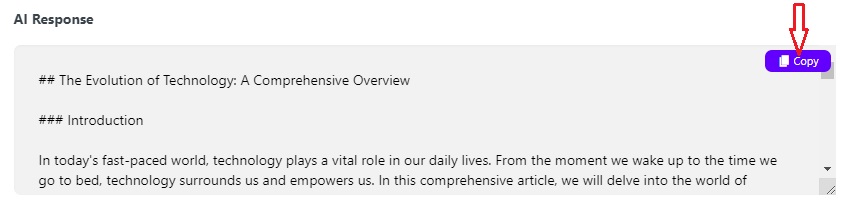
- The results will be returned in the AI Response field as shown in the screenshot below, and you simply need to click the copy button.
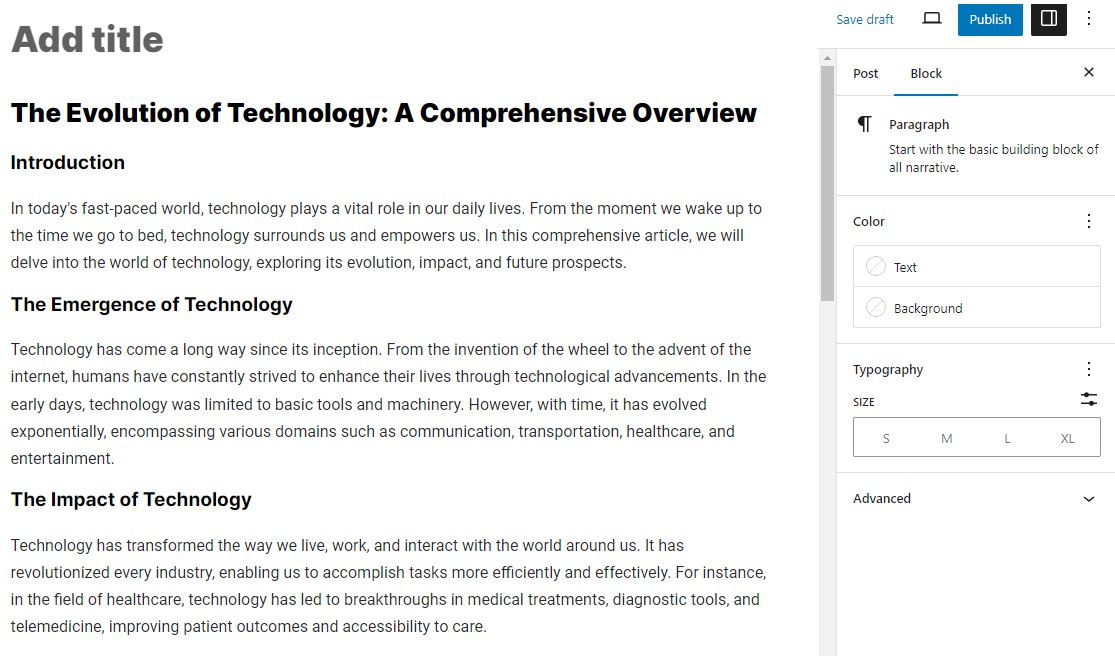
- After copying, you can paste it directly into your content.
How do I input prompts directly into ChatGPT?
If you notice slow responses from the API, an alternative method is to copy the text from the Prompt Info field and paste it directly into ChatGPT.
