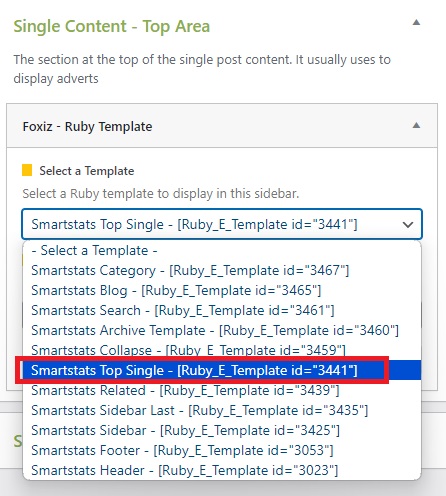

This section uses Icon Box blocks in Elementor to create a template for the top section of the content. Afterward, it is integrated into the Single Content – Top Area section.
To get started, please follow the steps below:
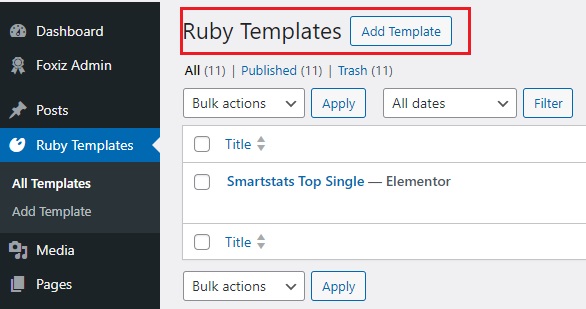
- Navigate to Ruby Templates > All Templates, then click the “Add Template” button to create a template.
- The website will redirect to another URL and the panel will appear on the page. Then you can search “Icon Box” blocks in the Elementor.
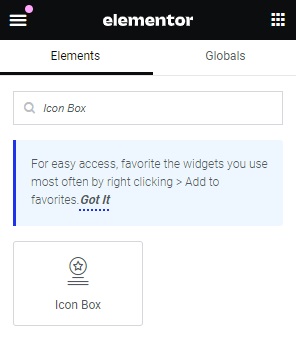
- After you search “Icon Box”, you can drag and drop blocks inside.
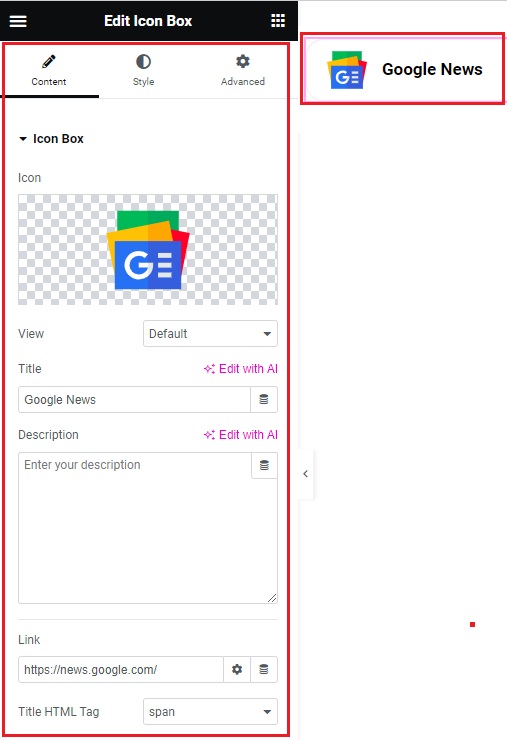
- Change your Icon Box settings in the Content tab.
- To create a hover effect to this button, you can click on the Advanced tab > Background > go to the “Hover” tab, and customize the color according to your preference.

- After creating the template, you can navigate to this path (Appearance > Widgets).
- In the widgets section, you can find a widget named “Foxiz – Ruby Template” and assign it to the section named “Single Content – Top Area“
- And then you just need to select the template you’ve created to display it at the top of the content on each post.