
With the launch of version 2.2.0, Foxiz has integrated support for live blogging posts, providing a user-friendly experience for both bloggers and readers alike. Explore a novel approach to real-time content delivery.
Here’s what makes it special:
- Viewers of your Liveblog get new entries served to them instantly and automatically, without needing to refresh their browser.
- Supports Gutenberg blocks: Your authors can add any content, including photos, videos, lists, right into the Liveblog area.
- There’s no need for a separate site dedicated to liveblogging; every post can be a liveblog, even existing ones.
How to Create a Live Blog Post
To get started, please follow the steps below:
- Navigate to Posts > Add New Post.
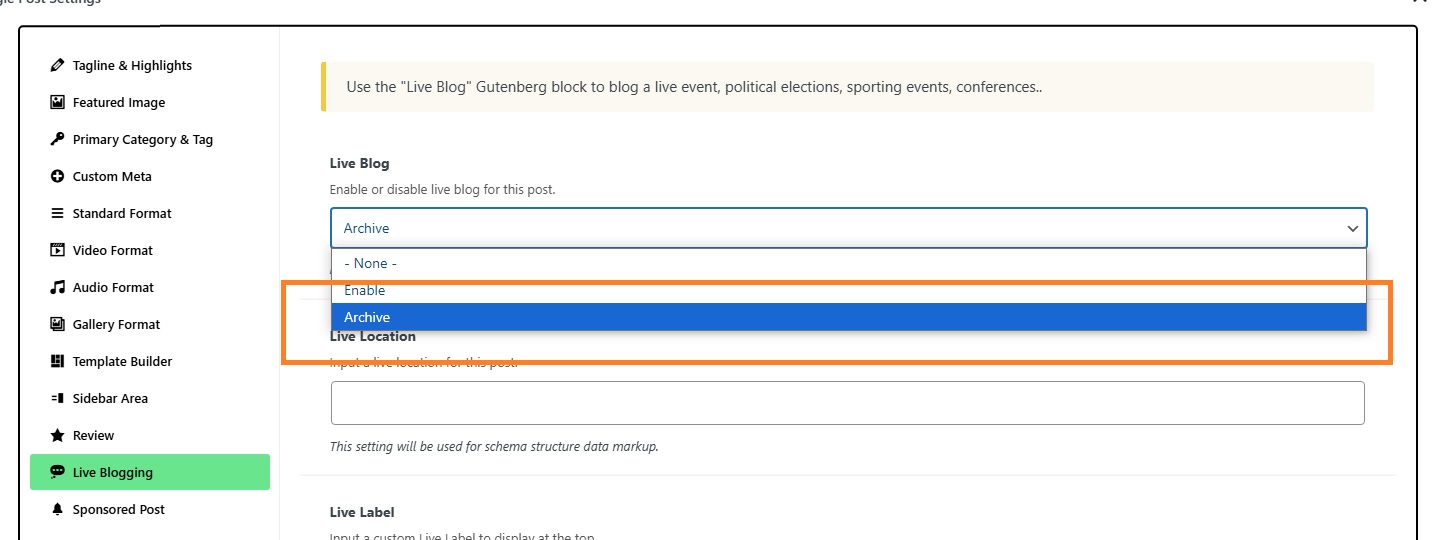
- Scroll down to the bottom of the screen, then refer to the Single Post Panel and select the Live Blogging tab.
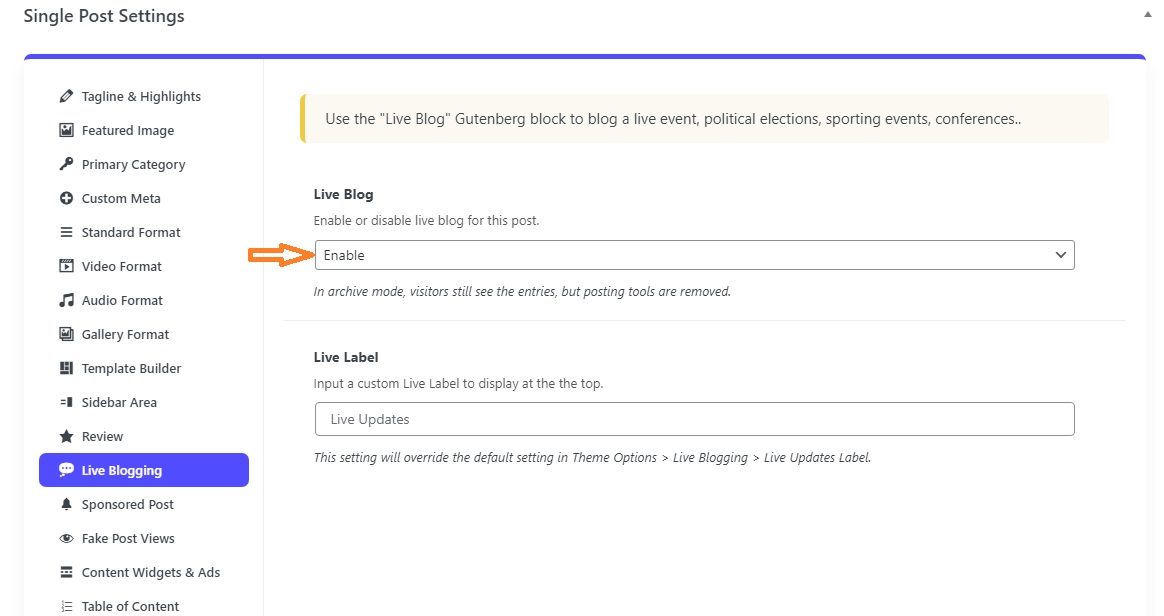
- Enable the Live Blog setting.
- Navigate to the Editor area and search for the Live Blog Gutenberg block.
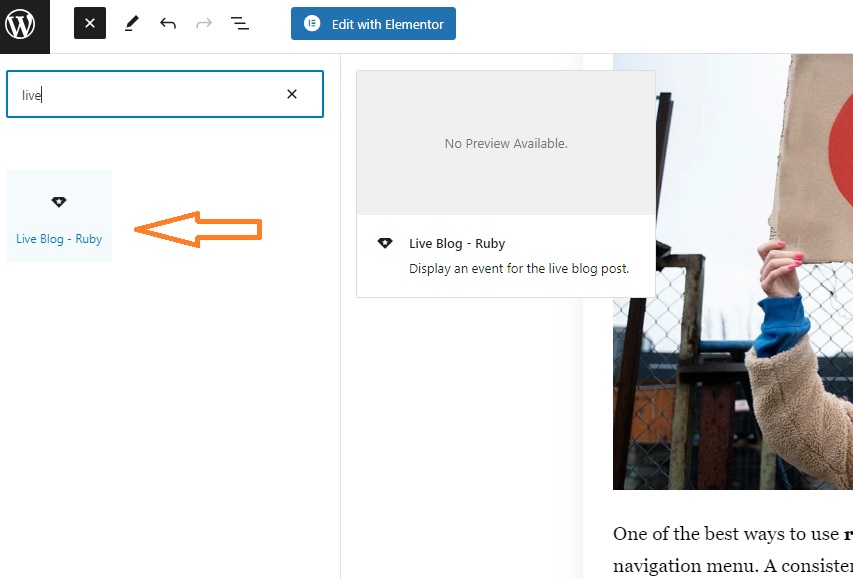
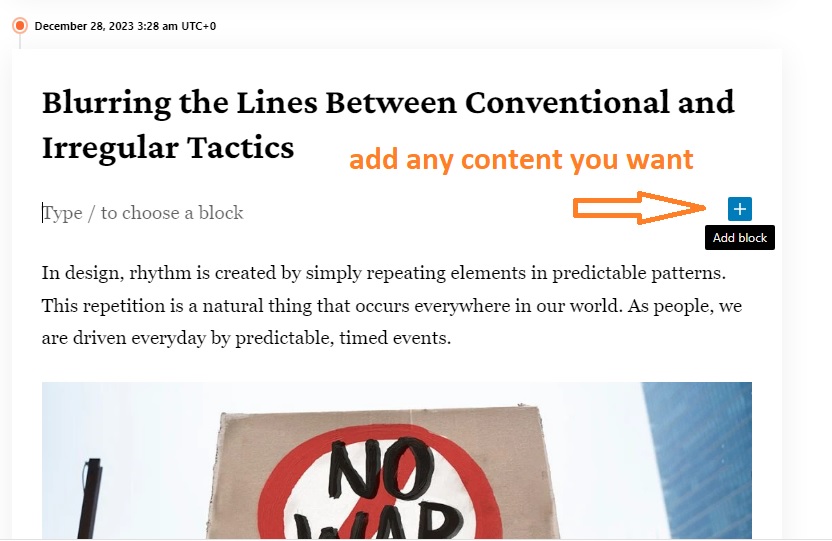
- Add the Live Block to the content, then you can add any content you wish.
- The Live Blog supports date event settings in the right panel, allowing you to choose the date, time.
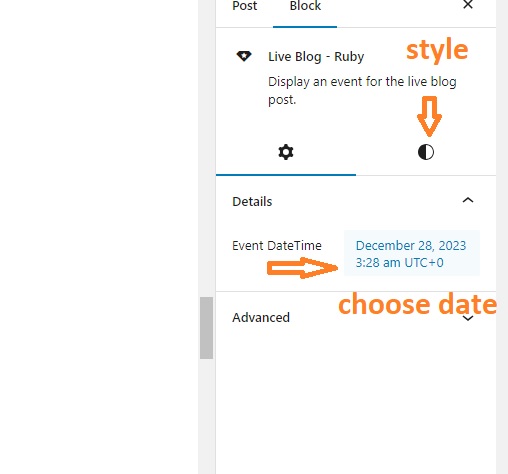
- Switch to the Styling tab to set up block styling, including options for border, background, spacing, and more.
- When the live blog ends, switch its status to Archived to automatically disable the refresh interval.
Global Live Blogging Settings
Foxiz supports global live blog settings, enabling you to control overall meta styling, time intervals, and the text label. To configure these settings, please follow the steps below:
- Navigate to Dashboard > Theme Options > Theme Design > Live Blogging
- In this panel, you can choose the settings to align with your preferences.
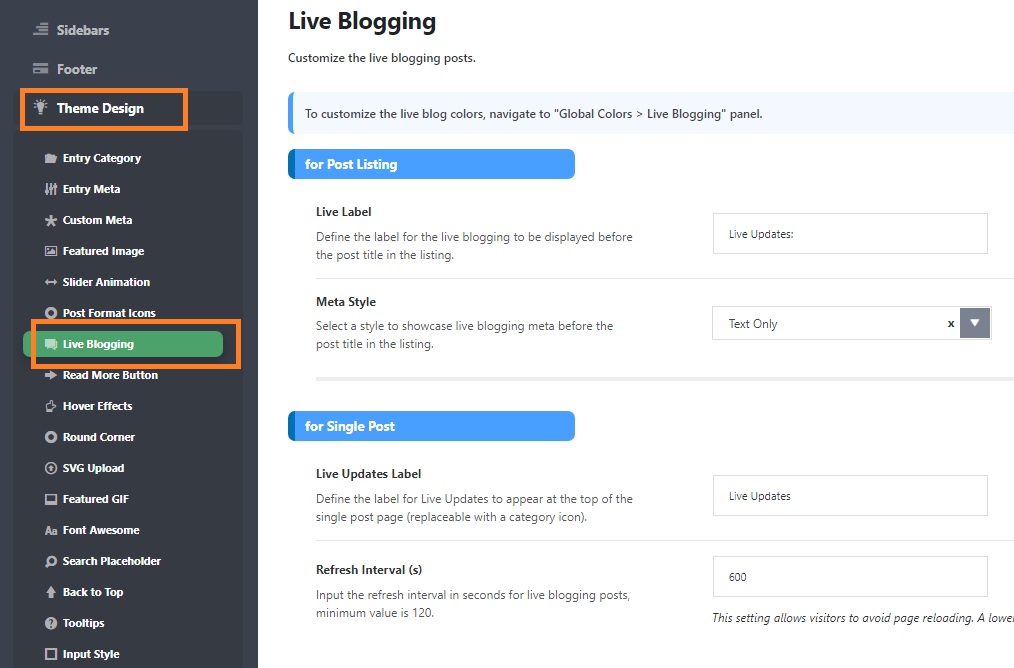
Please note that the theme enforces a minimum limit of 120 seconds, coupled with the built-in cache, to help prevent server overload during periods of high traffic.
How to Display Your Live Blogging Posts on the Homepage and Post Listings?
To achieve this, please follow the steps below:
- Navigate to Edit Page > Edit with Elementor
- Select the block where you want to display live blogging posts or add a new posts block.
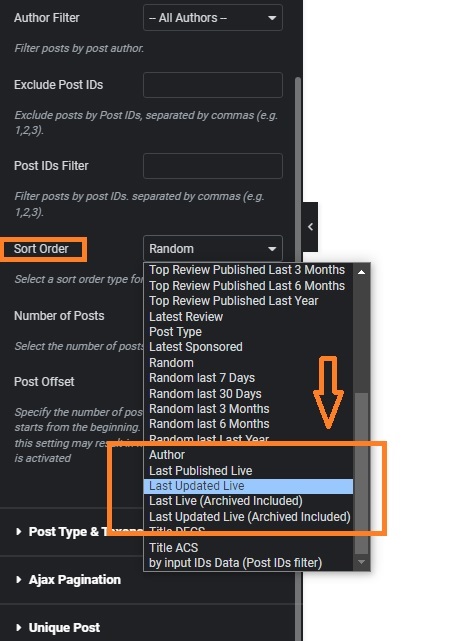
- Refer to the Block Settings > Content Tab > Query Settings > Sort Order, then choose the filter you desire.
- Save Changes.
