
Category Meta Info Style
Category meta info is the small element displayed in the blog listings.
The theme provides an option for you can change the style of this element.

To get started, follow the steps below:
- Navigate to Theme Options > Standard Blog Design
- The module list will appear, then select the module name you would like to edit.
- Look for the “Entry Category” option at the top of the right side, then select a style you want.
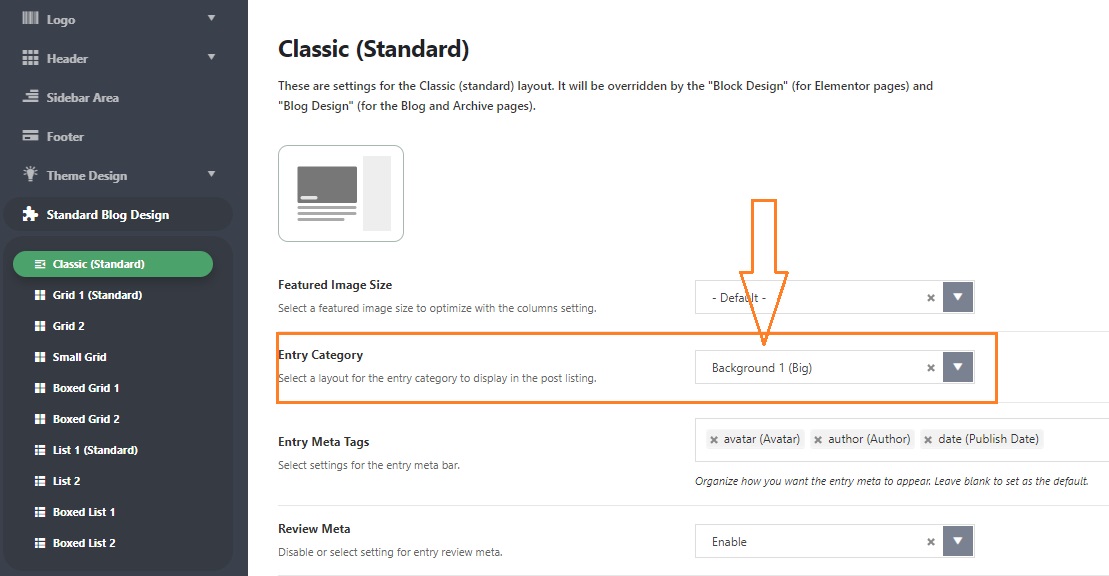
- Click on the “Save Changes” button.
Icon color
Default Color: the default color of this element depends on the global color setting.
To get started, follow the steps below:
- Navigate to Theme Options > Theme Design > Entry Category
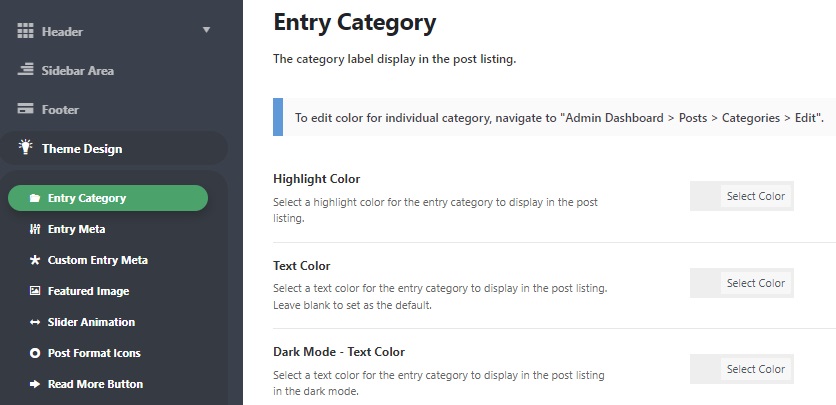
- Click on the “Save Changes” button.
Individual color per category:
The theme provides an option for you can change the color of this element per category. To get started, follow the steps below:
- Navigate to Posts > Categories page.
- Select a category you want to edit, click on the “edit” link to navigate the edit category page editor.
- Scroll down to the bottom page and look for the Foxiz Category Options panel.
- Select your color under the “Entry Category Colors” option.
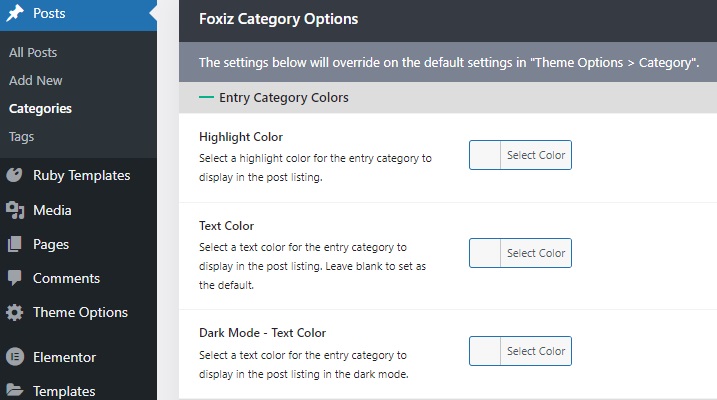
- Click on the “Update” button to save your changes.
