
The theme supports a more button menu for the navigation section. This will allow you to add more menu items, avoiding the issue of having an excessively long main menu.
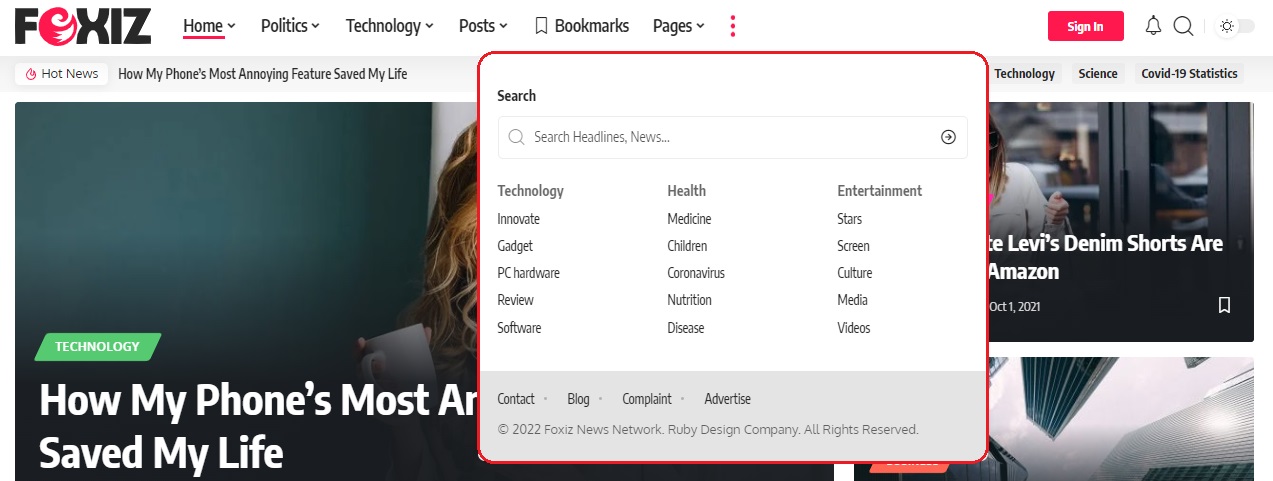
To manage the More Menu Item, follow the steps below:
- Navigate to Foxiz Admin > Theme Options > Header > More Menu Item
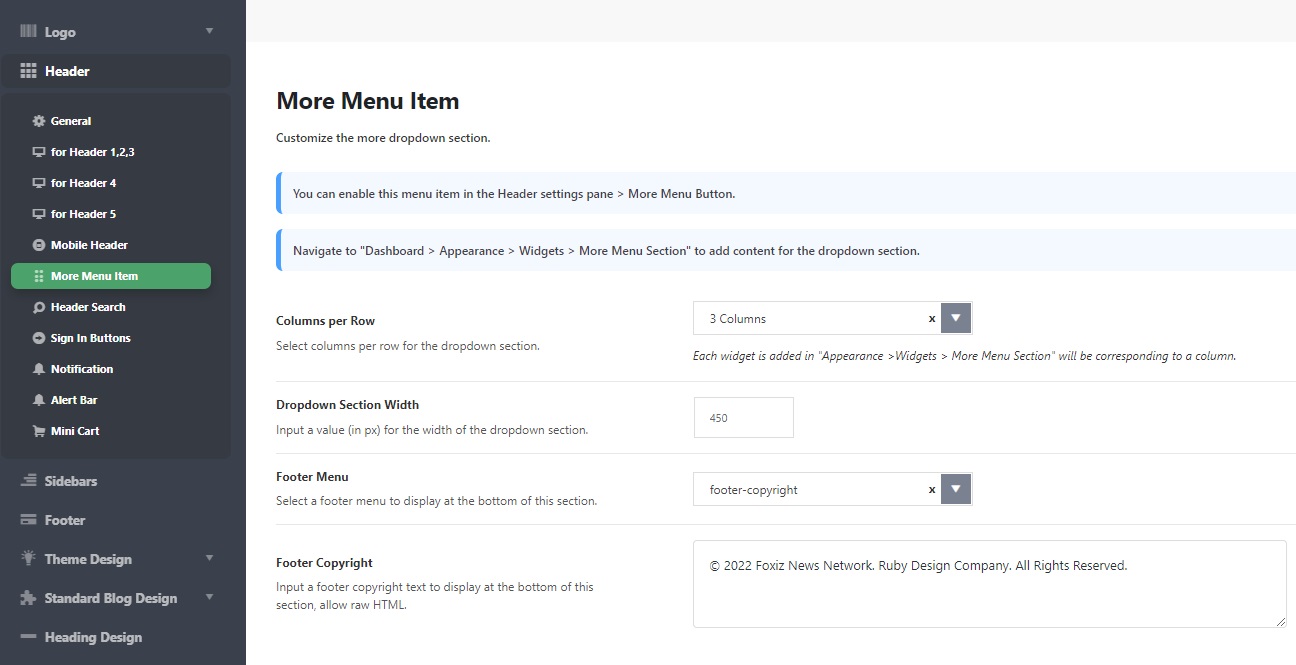
- And modify the options based on your needs.
- Click “Save Change”
– For the default header: to enable the More button, please follow the steps below:
- Navigate to Foxiz Admin > Theme Options > Header > General > Header Style
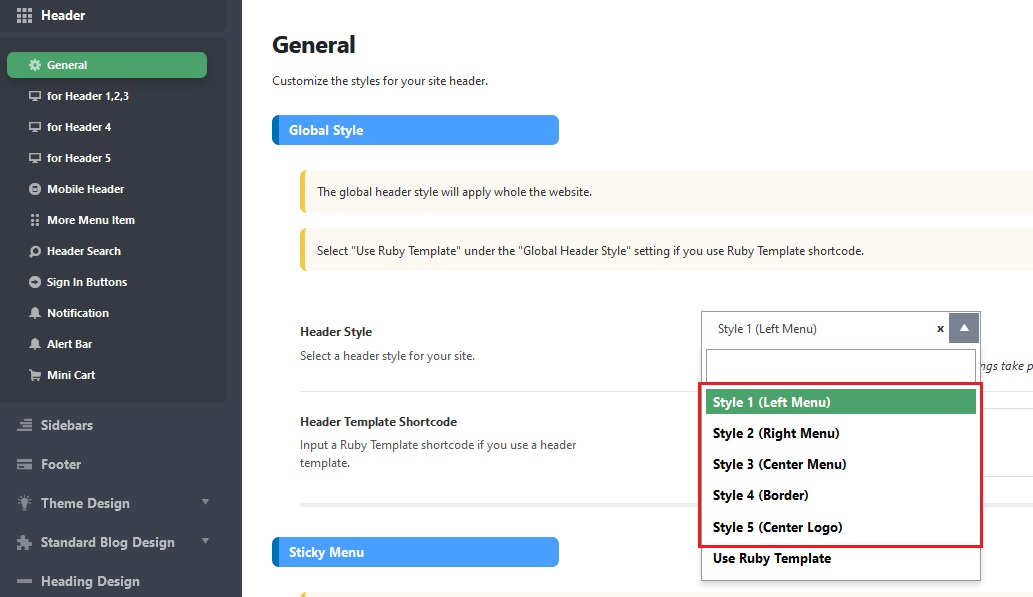
- Here, the theme has 5 default Header styles (Header 1->5) that you can refer to and see which header style your website is currently using.
- And then, go to Theme Options > Header > and select the Header style you want to enable the More button feature > General > More Menu Button and enable this
option.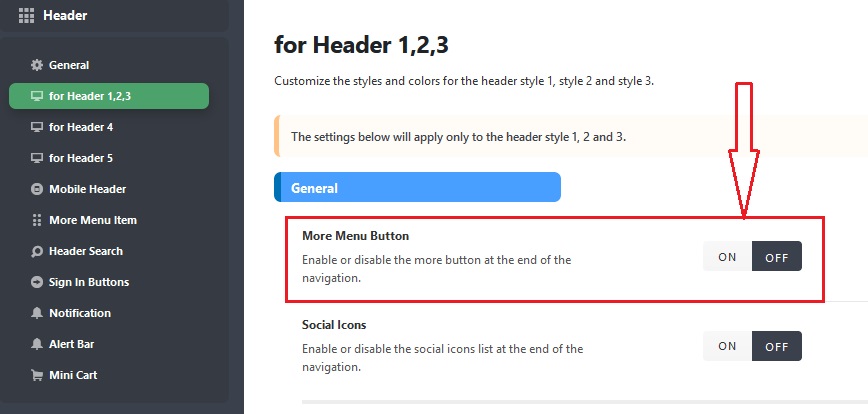
- Click “Save Changes“
– For the header template: to enable the More button, please follow the steps below:
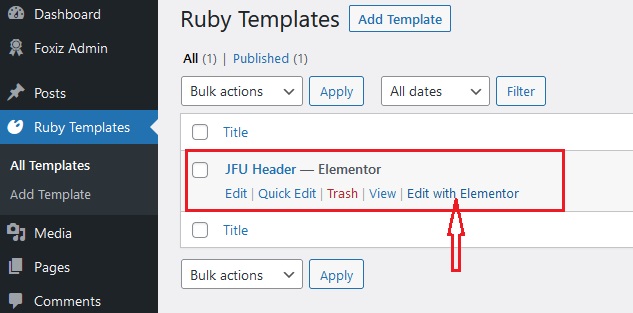
- Navigate to Ruby Templates > Header template
- Click on “Edit with Elementor” to edit the header.
- Go to the Foxiz – Menu Navigation block and click on it > Content tab > More Menu Button, then enable this option.
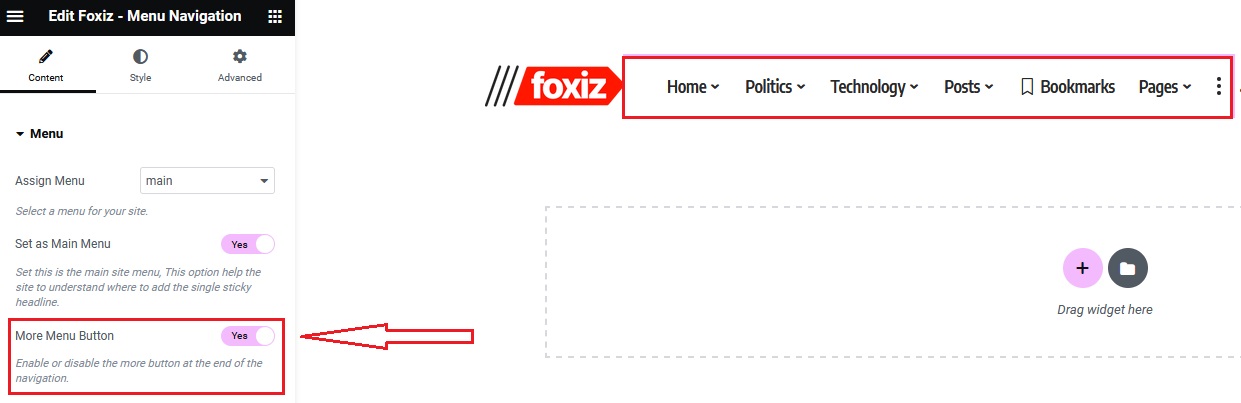
- Click “Update“
To add content for the dropdown section, please follow the steps below:
- Then navigate to “Dashboard > Appearance > Widgets > More Menu Section” to add content for the dropdown section.
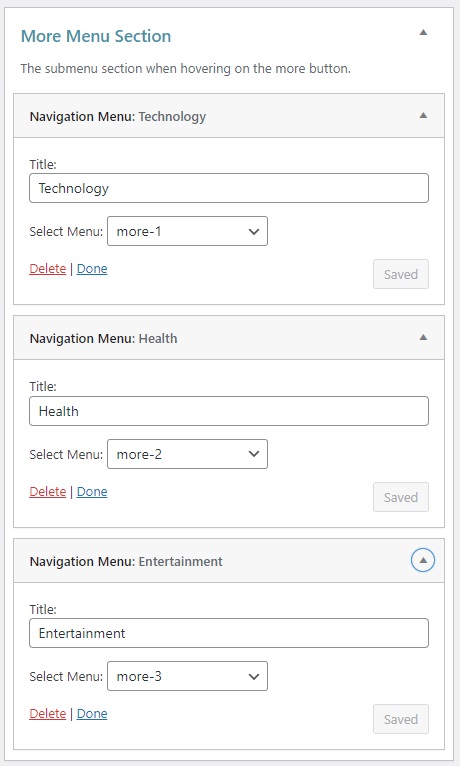
- Each Navigation Menu widget is equivalent to a column in the dropdown section.
