
You can create an Elementor template and then assign it to the search page.

To get started, follow the steps below:
- Create your template and copy it’s a shortcode, navigate to Dashboard > Ruby Templates. To create a template, you can refer to this documentation: Ruby Templates

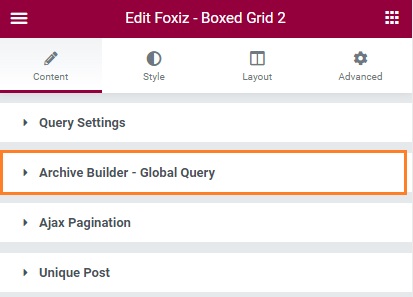
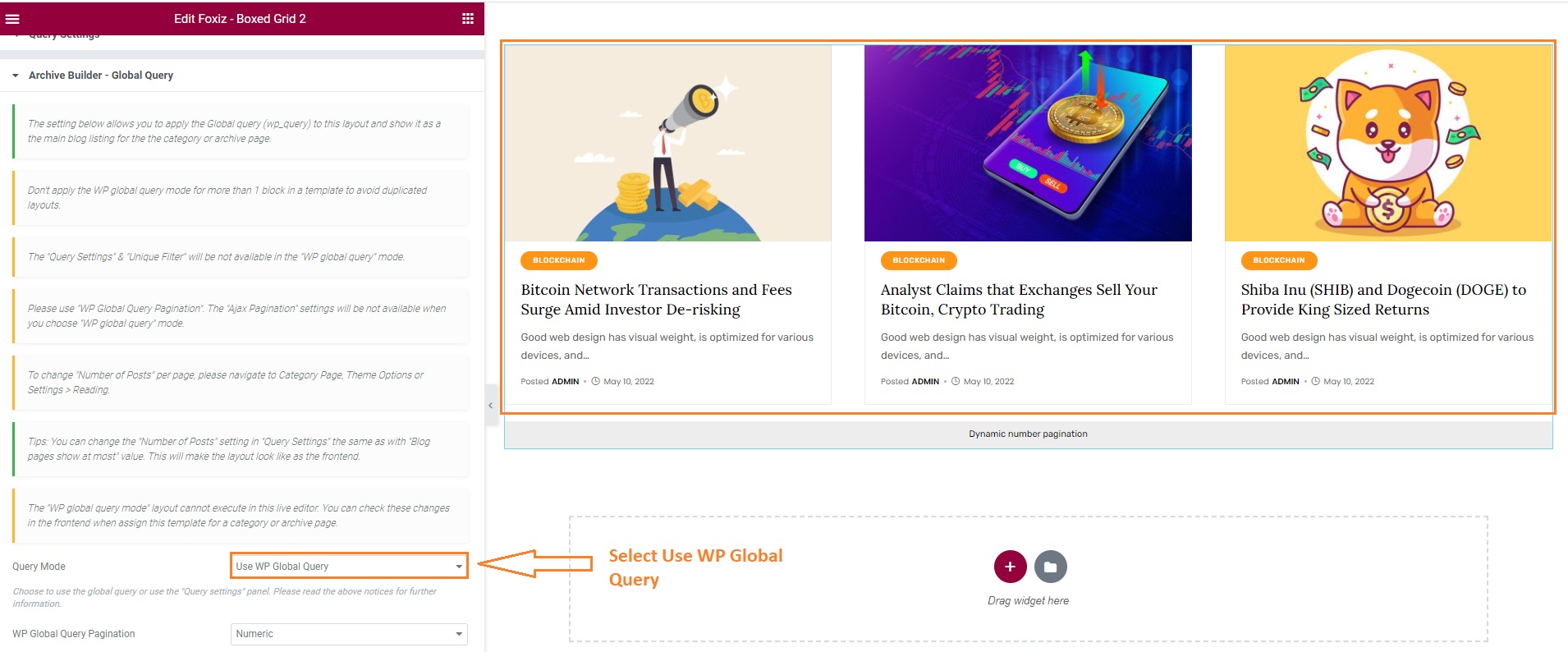
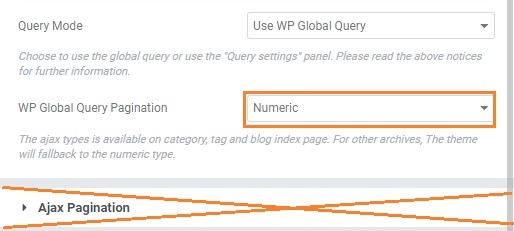
- In the settings panel for Block in this template, navigate to Content > Archive Builder – Global Query > Query Mode
- Select Use WP Global Query for displaying the main blog listing. The Global query (wp_query) to this layout shows it as the main blog listing for the categoryp page.
- Navigate to Theme Options > Blog & Archive > Search > Global Blog Template Builder
- Input a ruby template shortcode into Global WP Query Template Shortcode input
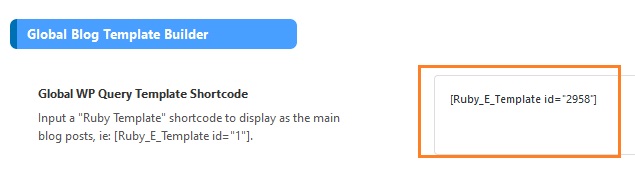
- Click save changes.
Notes when using WP Global Query:
The “Query Settings” & “Unique Filter” will be not available in the “WP global query” mode.
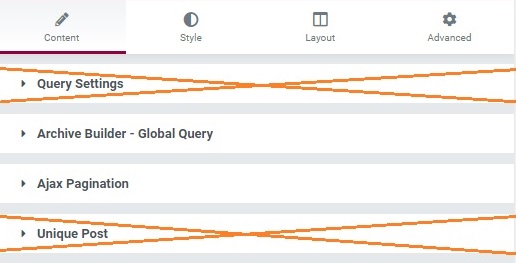
Please use “WP Global Query Pagination”. The “Ajax Pagination” settings will be not available when you choose “WP global query” mode.
To change “Number of Posts” blog page, To change “Number of Posts” blog page, please navigate to Theme Options > Blog & Archive > Search > Posts per Page.

Tips: You can change the “Number of Posts” setting in “Query Settings” the same as with “Blog pages show at most” value. This will make the layout look like as the frontend.

The “WP global query mode” layout cannot execute in this live editor. You can check these changes in the frontend when assign this template for a category or archive page.
