
Backup website
We recommend use backup features of your hosting. The way described below is just the fallback option.
In case you would like to backup your website, you can follow the steps below:
- Download All-in-one WP Migration plugin and install it.
- Navigate to Site Migration > Export.
- Click to Advanced option to expand them. Select checkboxes to choose data that don’t need to be backed-up (sometimes, excluding themes and plugins may be a good idea).
- Click on Eхport button to start exporting.
Restore website
- Navigate to Site Migration > Export. Then drag&drop the backup file to upload it.
- Wait to finish.
Backup and Restore Theme Options settings
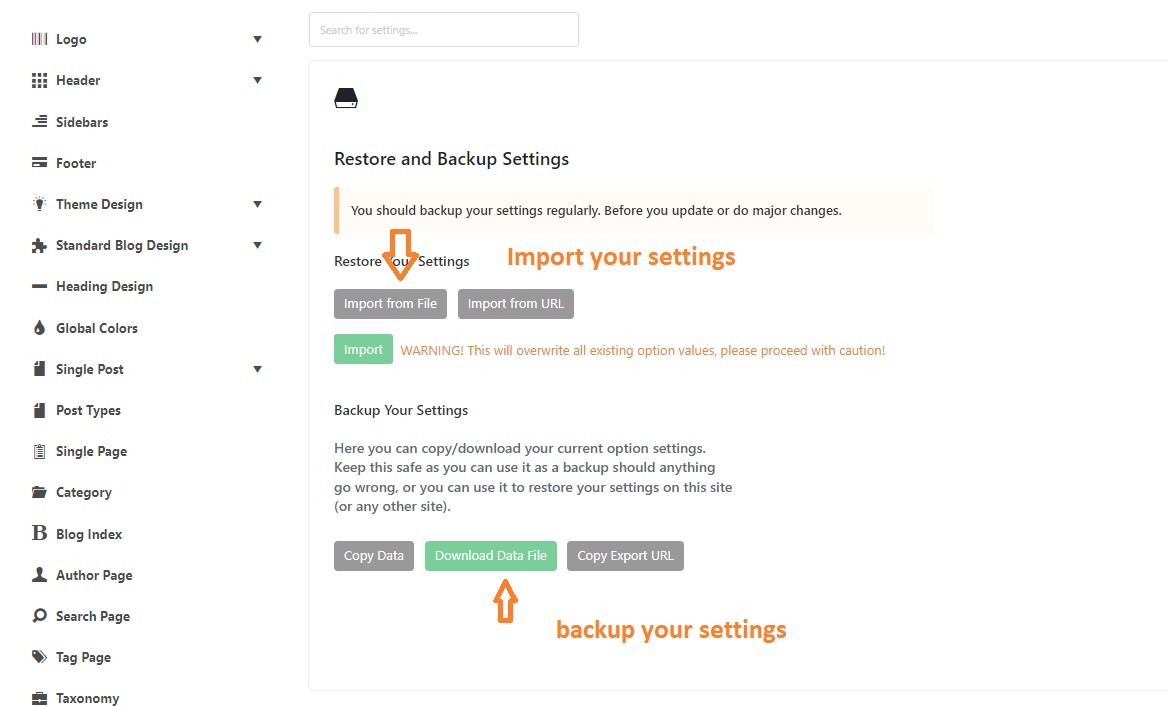
Backing up the options settings allows you to quickly restore your settings or move them to another website. To get started:
- Navigate to Theme Options > Backup/Restore
- Click on “Download Data File” to download settings in to your device.
- To restore your settings, open your backup file and copy all the strings. Then, click on “Import from File,” paste your backup strings, and click on “Import” to restore your settings.
Other useful plugins & resources:
That’s all!
