
AMP (Accelerated Mobile Pages) is an open-source initiative to make websites of all kinds more accessible on smartphones and tablets.
The theme support AMP in Transitional Mode and for page/post and all other default templates. It is served to mobile visitors when they find the content on platforms such as Twitter, Pinterest, Google Search, and others.
To getting started, Follow the steps below:
- Install & active plugin AMP: https://wordpress.org/plugins/amp/
- Navigate to Dashboard > AMP > Settings > Advanced Settings > Supported Templates
- Select Content Types and Templates you would like to enable under the Supported Templates option.
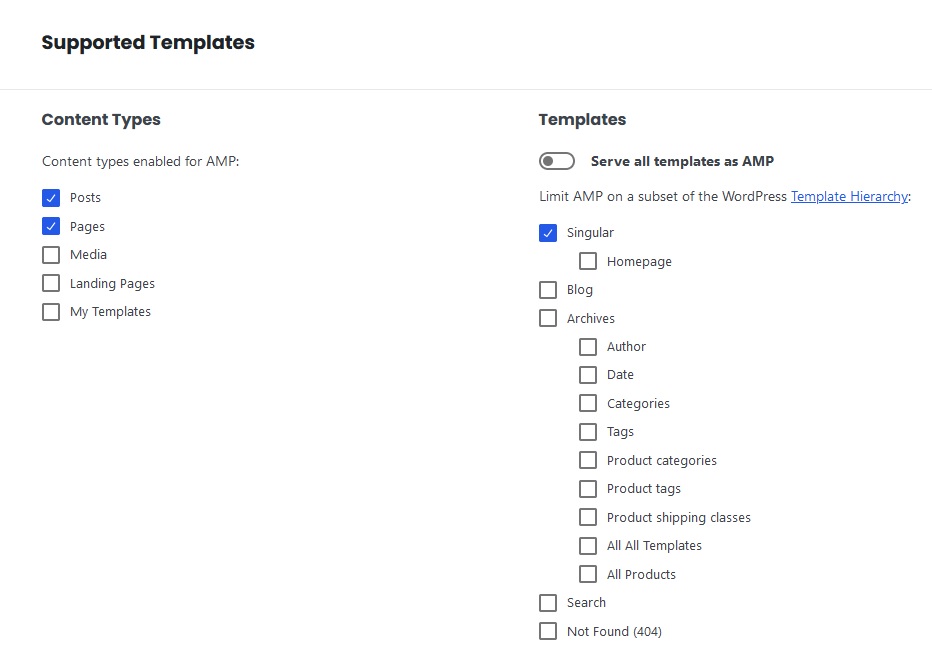
AMP Settings
- Navigate to Theme Options > AMP
- Set what you need and save changes.
You can refer the official site for further information.
Missing an element or section on AMP pages?
AMP imposes certain restrictions on CSS usage (maximum of 75KB of CSS), Javascript is not allowed and many other restrictions.
We tried to do our best to support as many features as possible for the AMP. However, Some features may not display on the AMP version and we do not guarantee that 3rd plugins will be compatible with it or not.
We do not recommended enabling AMP for the Home Page, due to some reasons below:
- Google AMP cache can live longer than 1 month in their server and it is very difficult to refresh.
- Elementor isn’t compatible with AMP, because some settings that relate JS will not work correctly.
AMP is very good for single posts and single pages with static content. It will not be good for pages that have dynamic content data and reload regularly such as the homepage, blog, and category page.
How to Properly Disable Elementor on AMP
+ Method 1:
As the theme utilizes blocks integrated with Elementor, enabling Elementor on AMP facilitates the rendering of built-in templates. However, functionalities related to JavaScript will be deactivated. To do this, navigate to AMP > Settings > Plugin Suppression > Elementor, and then select ‘Active’.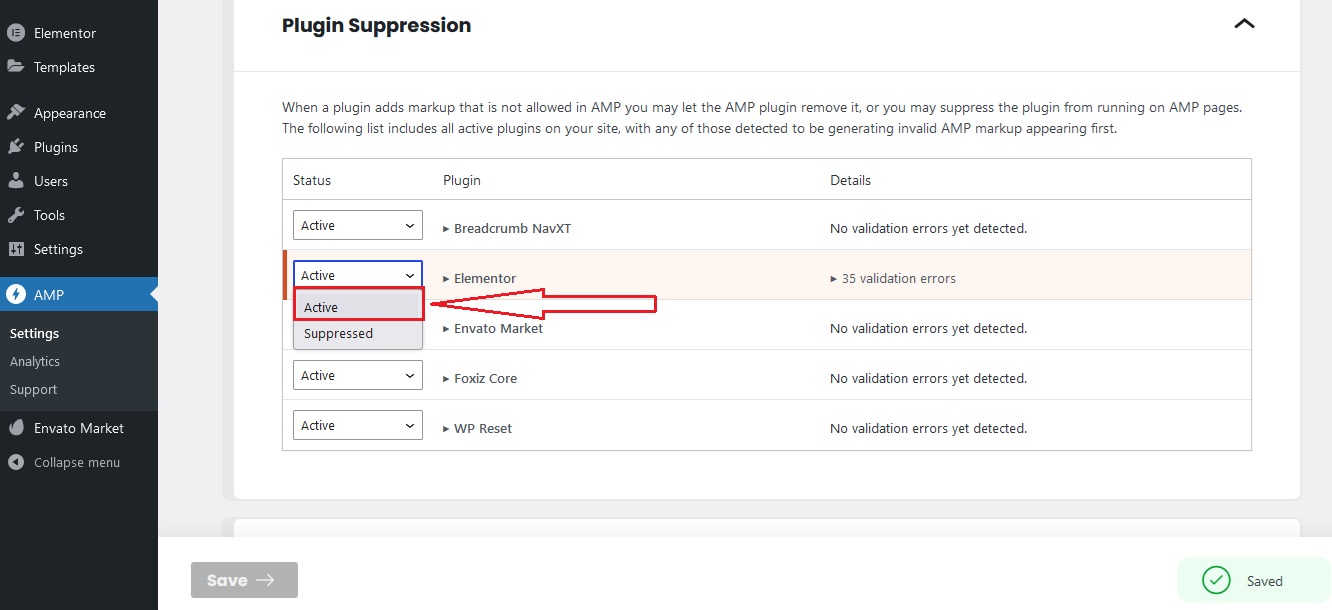
+ Method 2:
You can disable Elementor on AMP (navigate to AMP > Settings > Plugin Suppression > Elementor, then select ‘Suppressed’).
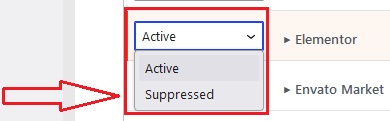
However, in this case, you need to consider the removal of blocks built with Elementor. Please refer to the blocks below for more information:
- Header Mobile Template Shortcode: Navigate to Foxiz Admin > Theme Options > Header > Mobile Header > Header Mobile Template Shortcode
- Related Template : Navigate to Foxiz Admin > Theme Options > Single Post > Related & Popular > Related Template > Template Shortcode
- Popular Section: Navigate to Foxiz Admin > Theme Options > Single Post > Related & Popular > Popular Section > Template Shortcode
